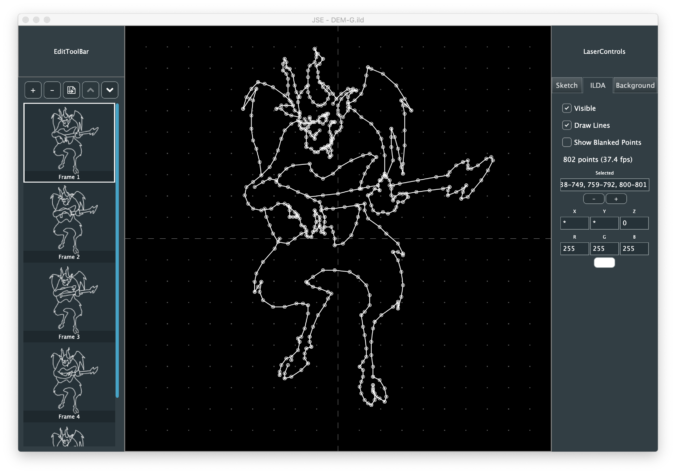
Last time we talked about starting to manipulate ILDA data. But before we manipulate points on the ILDA layer we need to have a mechanism to keep track of a ‘selection’, or which points we want to modify.
There are several different common ways to do this but I went ahead and just repurposed JUCE’s SparseSet class. At first glance, it might not seem obvious why. Given the relatively modest numbers of points that we will generally have selected in a frame we could just use a container, like JUCE’s Array class. Or one of the Standard Template Library container classes. Just make an array of uint16 values (the maximum number of ILDA points in a frame) and add the index of each selected point to it.
The downside to this is testing if a given point is selected when we are doing something like drawing all the points to the screen. If our selection is big, we can spend a lot of processor time walking through the array looking to see if it contains a given index.
There are ways to optimize this, like keeping our array sorted in numerical order. But what we really want is some sort of a quickly searchable hash table like mechanism. As luck would have it, that is precisely what a SparseSet already is. It doesn’t keep and array of individual values, it keeps an array of ranges. Each range has a start and a length. So if we have 60 points selected starting at index 100, we don’t store 100, 101, 102… But just start 100, length 60.
This makes testing to see if a specific point is in the overall set very efficient. Further, the class is smart about optimizing ranges when they are added. If we add 100-120 and 110-140, the class doesn’t just keep both ranges and test against them. It detects overlaps and optimizes them into a single range (in this case 100-140).
I actually went ahead and exposed the SparseSet used for ILDA point selection to the user in an edit box. I tweak a little so the user sees base 1 indexes instead of the base 0 indexes we use internally, but you can play directly and see how SparseSet operates.
Putting in a single value, selects that point:
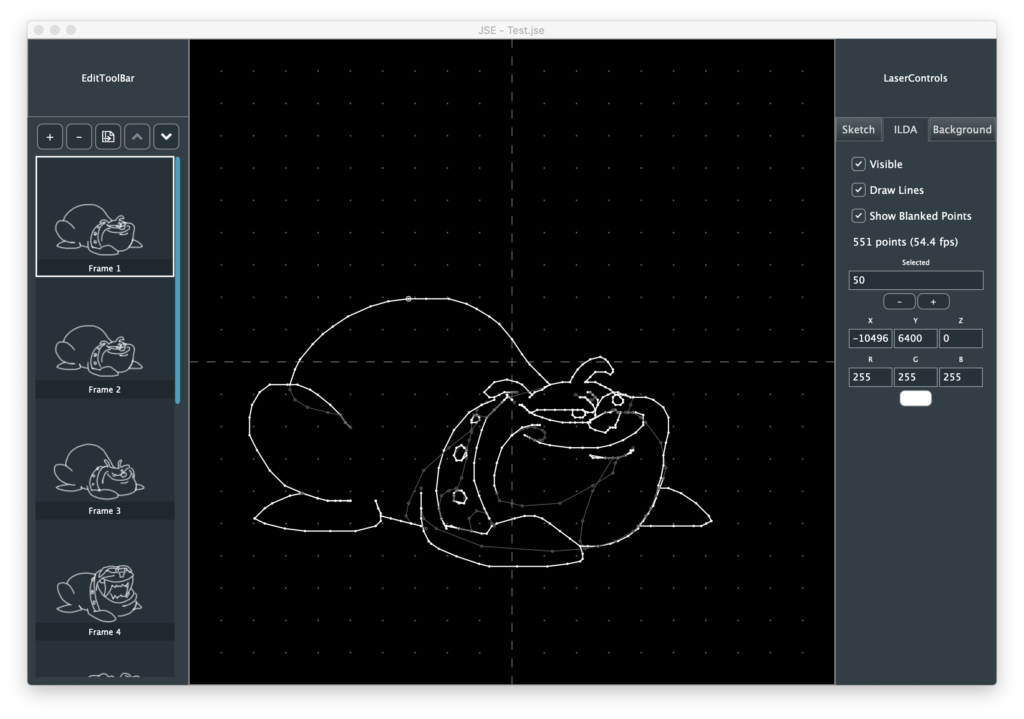
We’ll get into mouse manipulations in the next post. For now, just look at the property values shown for selected point 50. We can enter a new XYZ position and color in the edit fields:
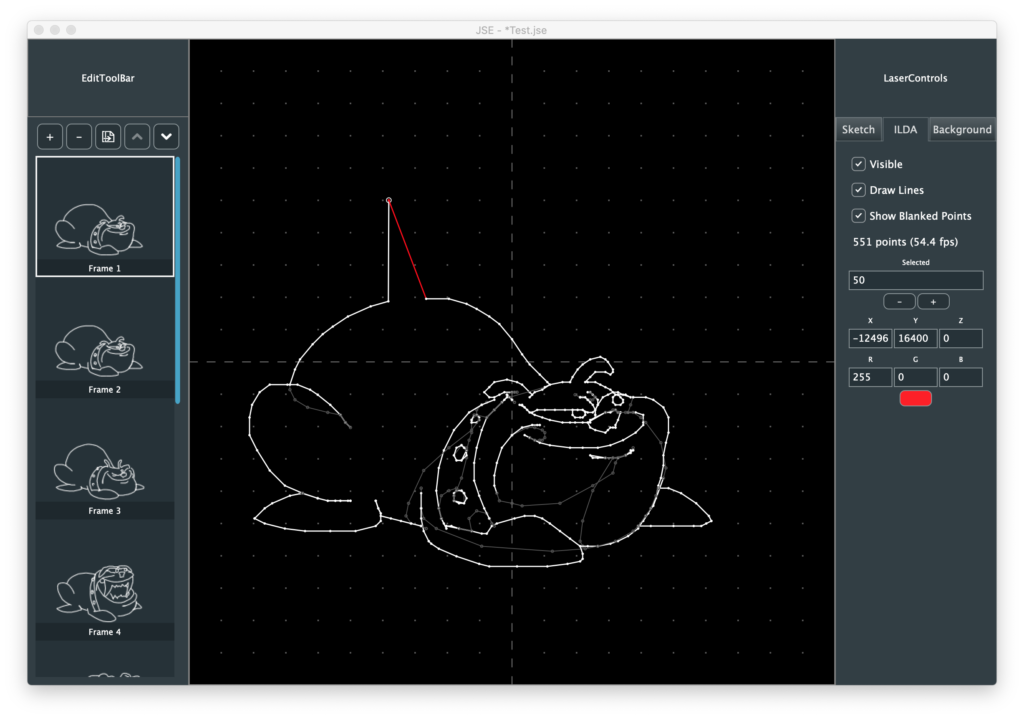
The scanners might not like the big jump above but, thanks to what we added last time, we can always undo. But we can also type in a range using ‘-‘:
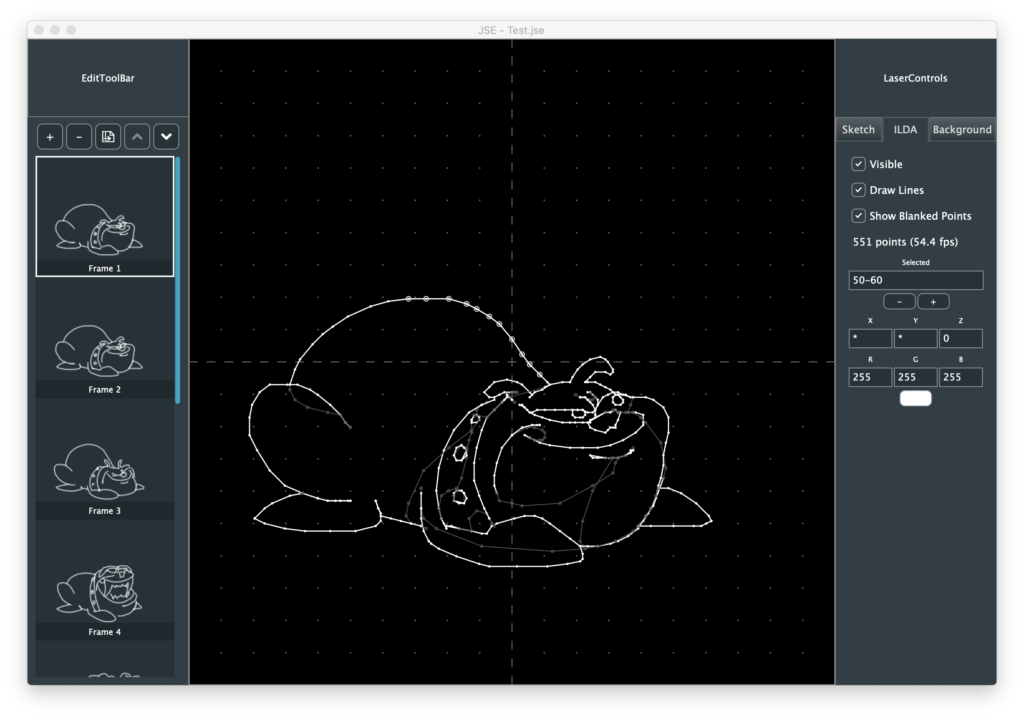
Like single points, we can shift that range up or down with the – and + buttons below the text box:
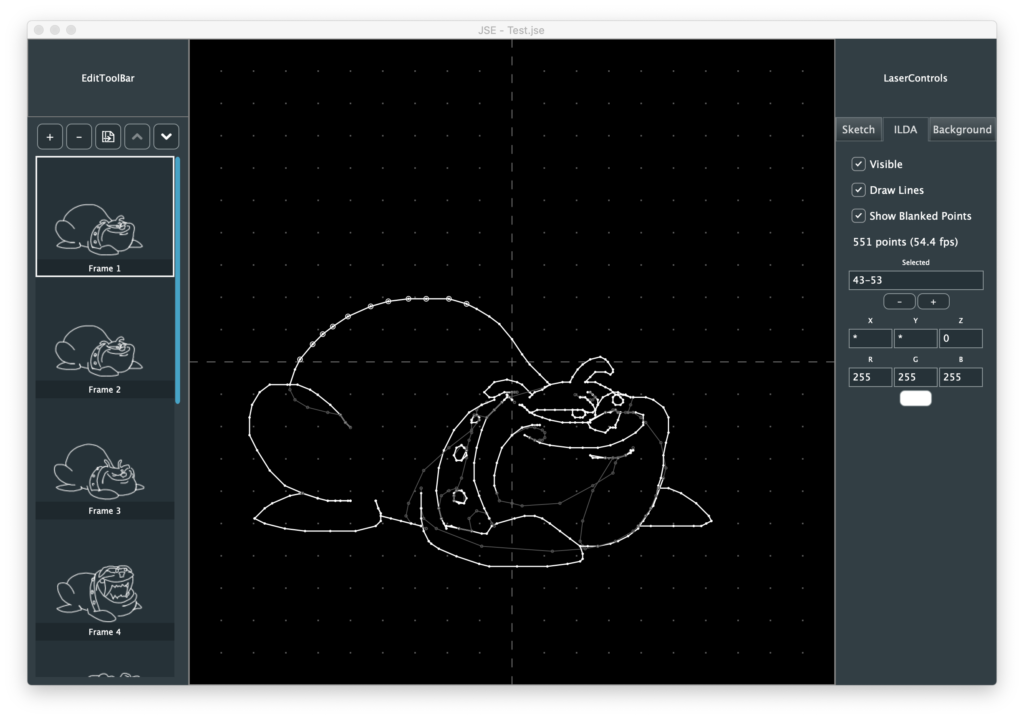
I added the command/ctrl A (select all) and command/ctrl D (deselect all) shortcuts to the menu and you can see that select all just makes a single, all inclusive, range in this case:
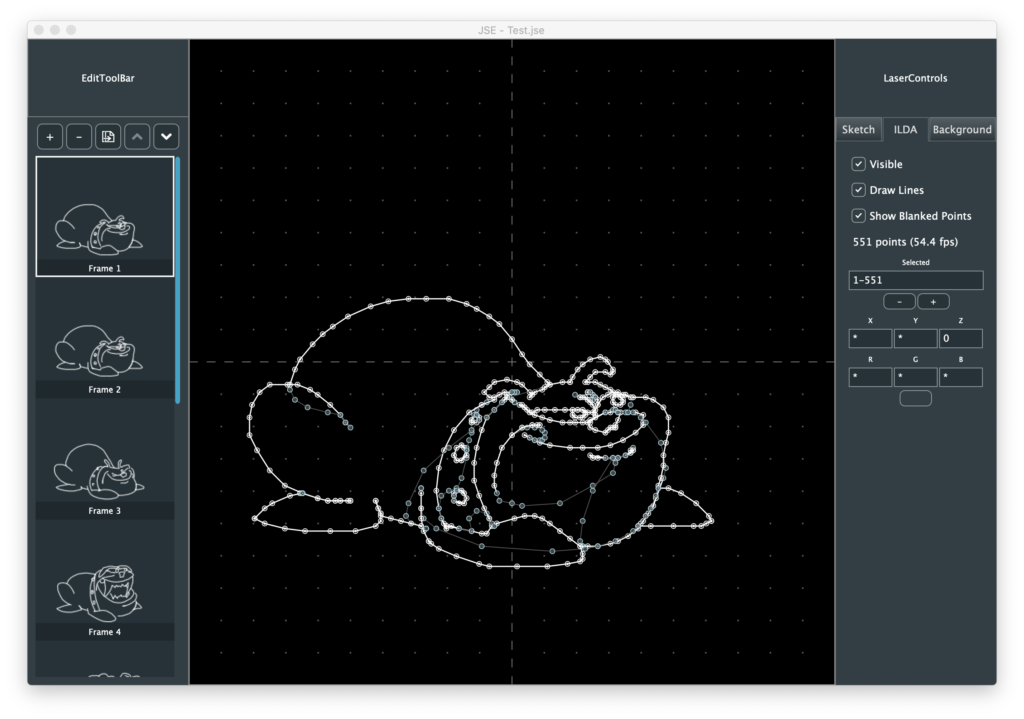
But look what happens if we turn off “Show Blanked Points” and hit command/ctrl A again:
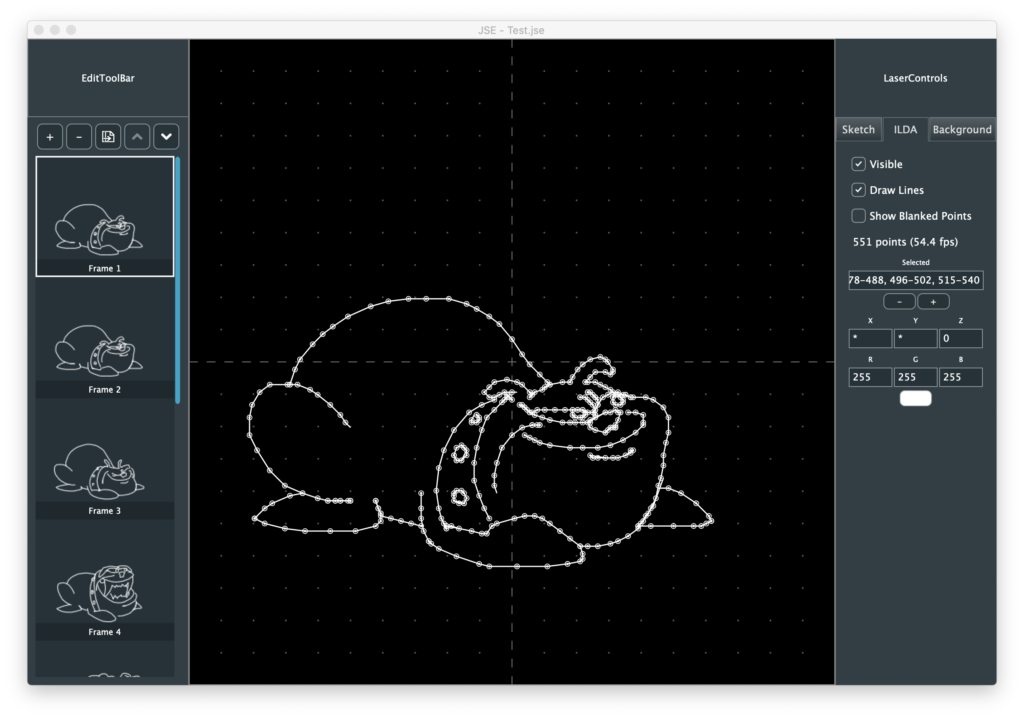
The selection field now shows a list of ranges, separated with commas. Obviously the user won’t normally want to type these values in themselves, they’ll want to use a selection tool, or shortcuts like select-all. But it can be occasionally useful and you can experiment typing in ranges and see how the SparseSet class optimizes them.
Since we have all the visible points selected, let’s go ahead and color them by clicking the swatch below the RGB edit fields:
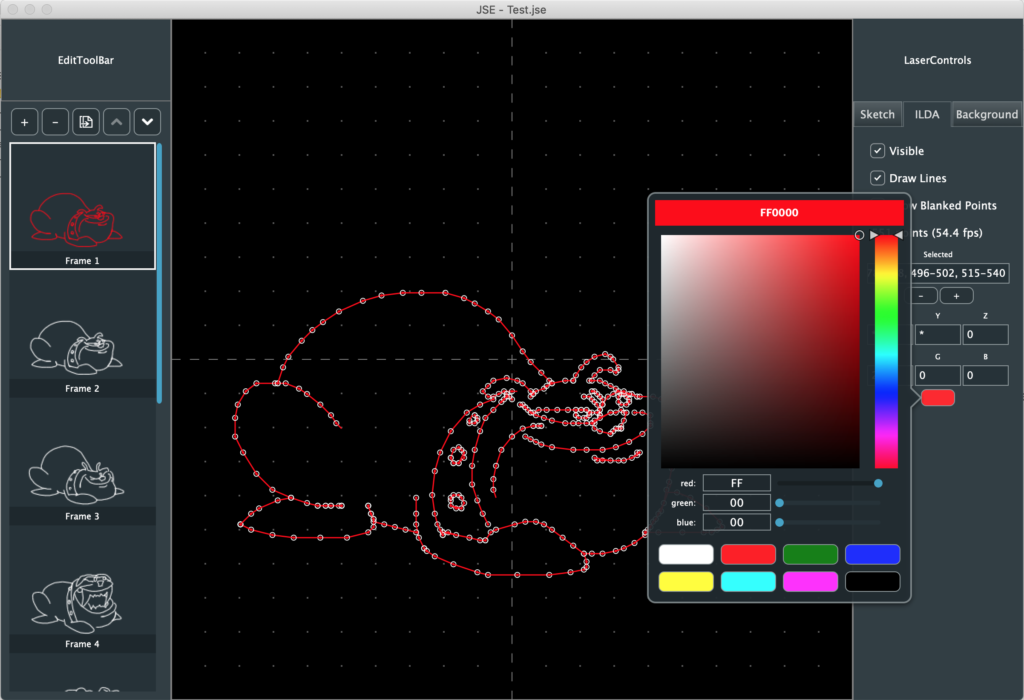
JUCE has an ok color selection class called ColourSelector. You can enter web colours by typing them at the swatch at the top, use the mouse with the hue slider and color field in the middle, or use the sliders and RGB values at the bottom. The class has it’s own color swatch scheme, but it’s weird. A menu pops up every time you clock on a swatch asking if you want to use or save. So I disabled that and just put my own eight fixed color swatches at the bottom, with the seven traditional laser colors and black for blanking.
There is some other housekeeping worth mentioning. As I covered last time, our frames are “reference counted objects”, so can can keep them around for undo and discard them pretty freely. This made it very straight forward to add some basic frame operations to the Edit menu and a button bar across the top of the frame list:
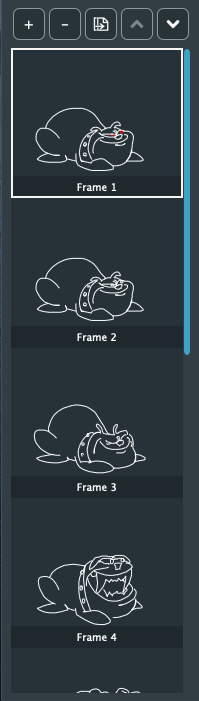
You can add new frames, delete frames, duplicate frames, and shift a frame up and down in the order. We’ll get fancier later but this is a start.
Most other housekeeping is related to files. In addition to the ILDA import we looked at last time, you can now export your edits back to ILDA format files as well. Because we only write one of the 5 ILDA formats, the export function is very straightforward:
bool IldaExporter::save (ReferenceCountedArray<Frame>& frameArray, File& file)
{
    if (file.exists())
        file.deleteFile();

    FileOutputStream output (file);

    if (! output.openedOk())
        return false;

    ILDA_HEADER header;
    zerostruct (header);

    header.ilda[0] = 'I'; header.ilda[1] = 'L';
    header.ilda[2] = 'D'; header.ilda[3] =  'A';
    memcpy (header.name, "Scrootch", 8);
    memcpy (header.company, ".me! JSE", 8);
    header.format = 4;
    int s = frameArray.size();
    header.totalFrames.b[0] = (uint8)(s >> 8);
    header.totalFrames.b[1] = (uint8)(s & 0xFF);
    header.projector = 1;

    for (auto n = 0; n < frameArray.size(); ++n)
    {
        // Update header
        header.frameNumber.b[0] = (uint8)(n >> 8);
        header.frameNumber.b[1] = (uint8)(n & 0xFF);

        if (frameArray[n]->getPointCount())
        {
            header.numRecords.b[0] = (uint8)(frameArray[n]->getPointCount() >> 8);
            header.numRecords.b[1] = (uint8)(frameArray[n]->getPointCount() & 0xFF);
        }
        else
        {
            header.numRecords.b[0] = 0;
            header.numRecords.b[1] = 4;
        }

        // Write Header
        output.write (&header, sizeof(header));

        Frame::XYPoint point;

        // Now records
        if (frameArray[n]->getPointCount())
        {
            for (uint16 i = 0; i < frameArray[n]->getPointCount(); ++i)
            {
                Frame::XYPoint in;

                frameArray[n]->getPoint (i, in);

                // Swap endian order of X, Y, and Z
                point.x.b[0] = in.x.b[1];
                point.x.b[1] = in.x.b[0];
                point.y.b[0] = in.y.b[1];
                point.y.b[1] = in.y.b[0];
                point.z.b[0] = in.z.b[1];
                point.z.b[1] = in.z.b[0];
                point.red = in.red;
                point.green = in.green;
                point.blue = in.blue;
                point.status = in.status;
                if (i == (frameArray[n]->getPointCount() - 1))
                    point.status |= ILDA_LAST;

                output.write (&point, sizeof(point));
            }
        }
        else
        {
            // Write out 4 blanked points
            zerostruct (point);
            point.status = ILDA_BLANK;
            output.write (&point, sizeof(point));
            output.write (&point, sizeof(point));
            output.write (&point, sizeof(point));
            point.status = ILDA_BLANK | ILDA_LAST;
            output.write (&point, sizeof(point));
        }
    }

    // One more header without records
    // We don't care about endian swap for this
    header.frameNumber.w = header.totalFrames.w;
    header.numRecords.w = 0;

    output.write (&header, sizeof (header));
    output.flush();

    return true;
}
I got sick of browsing for the same files all the time so I added a persistent “Open Recent” list sooner than I anticipated:
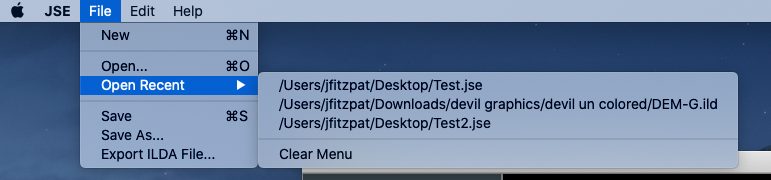
This was actually pretty trivial using the PropertiesFile and RecentlyOpenedFilesList classes from JUCE. I also added a ‘dirty’ counter to keep track of if a file has been edited since it was last saved. When dirty is not zero, an ‘*’ is added to the file name at the top of the window:
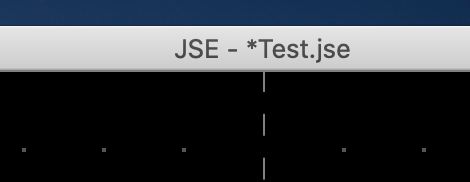
I decided on a counter instead of a simple flag because I think it works better with undo/redo. If you roll a file back to point you opened it, the count returns to 0. Redo and the count starts incrementing again.
Last, but not least, I bit the bullet and did the .jse specific file load and save. Just to recap, we use our own file format to keep things like background reference images and the sketch layer for each frame. That part is still true. Pretty much everything else I wrote last time is now false.
First, I started with XML, hated it, and switched to encoding the information as a ‘named property JSON text file’. JSON is ‘Java Script Object Notation‘. It’s actually pretty simple and easy to read. JUCE’s JSON support allows you to export with indent formatting, and I do, so if you open the data with a text editor it looks pretty comprehensible:
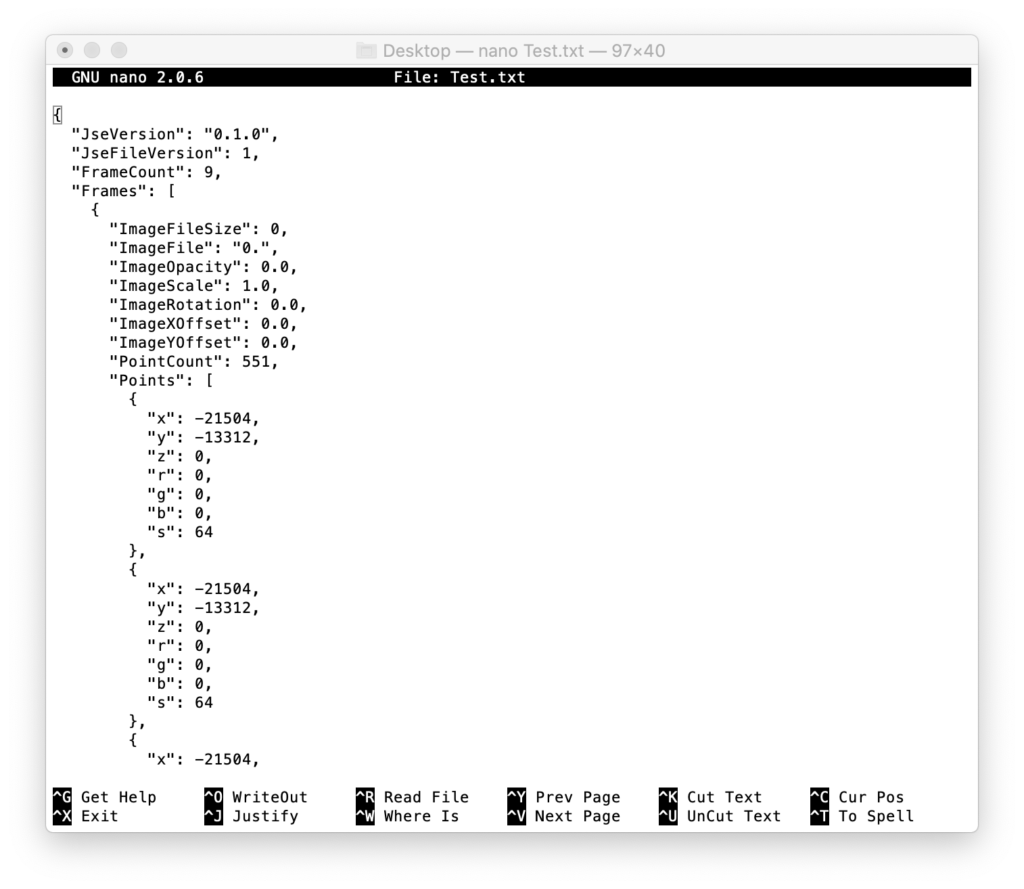
You can see a little info at the top of the file, then the first of the 9 frames. Each ILDA coordinate is in plain text for x, y, z, r, g, b, and s (status byte). The downside is storing points this way is huge. Our whole file is 800 kbytes in size! The same animation in ILDA binary format is 38 kbytes.
Enter the GZIPCompressorOutputStream and GZIPCompressorInputStream classes in JUCE. They use something called zlib. It is a free, open source, liberally licensed compression/decompression library. And it was super easy to add to our new JSEFileLoader and JSEFileSaver helper classes, for example:
bool JSEFileSaver::save (FrameEditor* editor, File& file)
{
    frameEditor = editor;
    DynamicObject::Ptr fileObj = new DynamicObject();

    fileObj->setProperty (JSEFile::AppVersion, ProjectInfo::versionString);
    fileObj->setProperty (JSEFile::FileVersion, JSE_FILE_VERSION);
    fileObj->setProperty (JSEFile::FrameCount, frameEditor->getFrameCount());

    var frames;
    for (uint16 n = 0; n < frameEditor->getFrameCount(); ++n)
        frames.append (frameToObj (n));

    fileObj->setProperty (JSEFile::Frames, frames);

    var json (fileObj.get());

    if (file.exists())
        file.deleteFile();

    FileOutputStream output(file);
    if (output.openedOk())
    {
        GZIPCompressorOutputStream z (output);
        JSON::writeToStream(z, json);
        z.flush();
        output.flush();
        return true;
    }

    return false;
}
All the compression magic is in two lines. The original line was:
JSON::writeToStream(output, json);
Making it two lines compressed the output file:
        GZIPCompressorOutputStream z (output);
        JSON::writeToStream(z, json);
And did zlib do the trick! Our 800 kbyte file saves as 22 kbytes. This is smaller than the binary ILDA original! That I did not expect. If you want to examine the text contents of a file for some reason you don’t have to alter the code and save again from our editor. There are a number of zlib friendly tools floating around. I used the command line application “openssl“. OpenSSL got a bit of a bad wrap over some security problems, but it is still installed for use with git and some other tools on both my OS X and Windows partitions. Decompressing a .jse file with opensll looks something like this:
openssl zlib -d -in Test.jse > Test.txtThe app is followed by the “zlib” command, “-d” for decode, “-in Test.jse” to specify the input file, then “> Test.txt” directs the decoded output to a file instead of the screen.
One other thing I changed my mind about was background images. Last time I said I was only going to keep references to the media. But I didn’t like that user experience. You have to remember to send the files together, give the user some way to restore links, etc. So I just bit the bullet and embedded any background images in the .jse file:
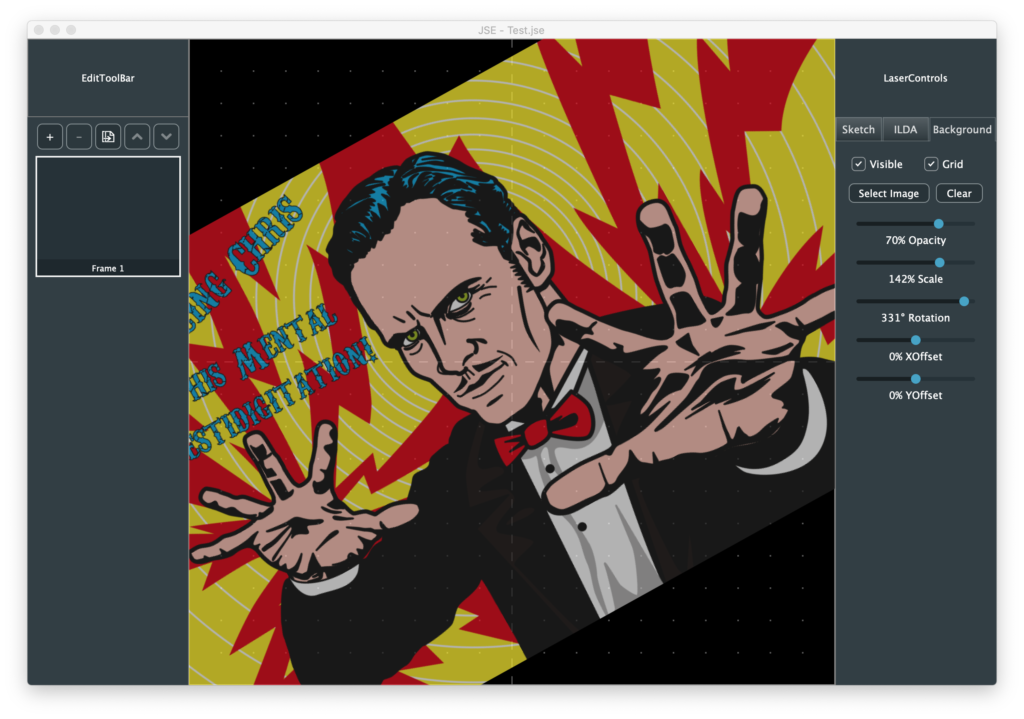
This saved in a JSE file that looks like this:
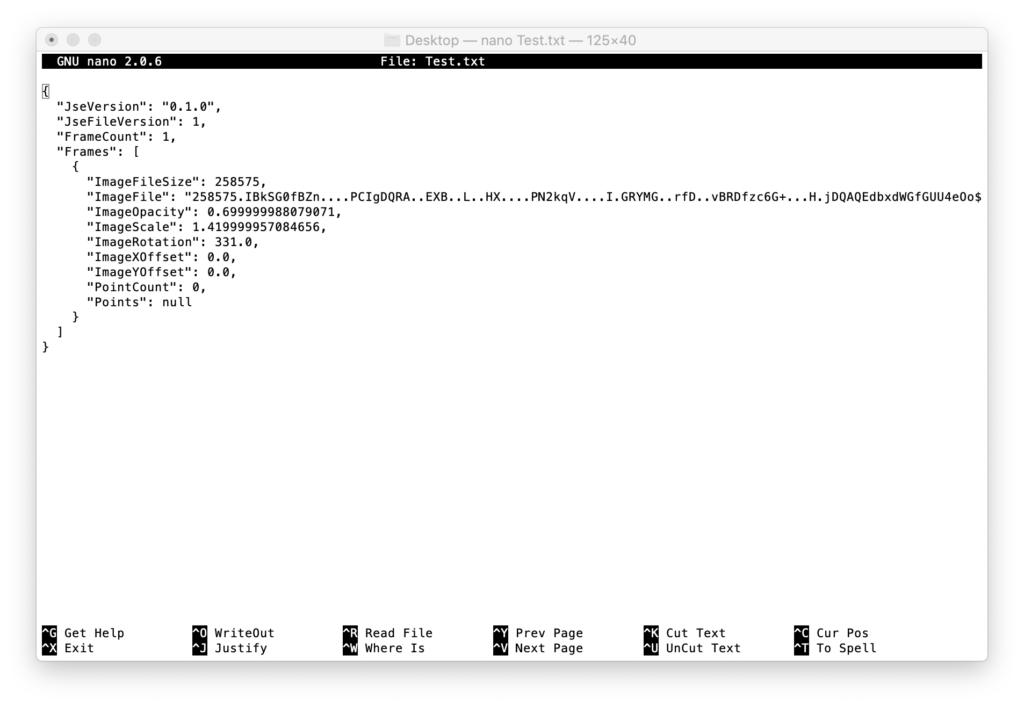
The original image file used is encoded as a very long base64 style string. It’s worth noting that JSE files don’t have to have any ILDA points. You can save the project when it is still just reference images and sketches. But ILDA files must have points, otherwise it is assumed that the zero point frame is the last in the file. If you export a frame to ILDA that does not yet have any points in it, they export function listed above does this:
            // Write out 4 blanked points
            zerostruct (point);
            point.status = ILDA_BLANK;
            output.write (&point, sizeof(point));
            output.write (&point, sizeof(point));
            output.write (&point, sizeof(point));
            point.status = ILDA_BLANK | ILDA_LAST;
            output.write (&point, sizeof(point));
And writes out 4 dummy blanked points at 0,0 (center). I’m trying to get reasonable pre-alpha version out for people to start playing with this week, but I’ll try to write up more details again soon!
Leave a Reply